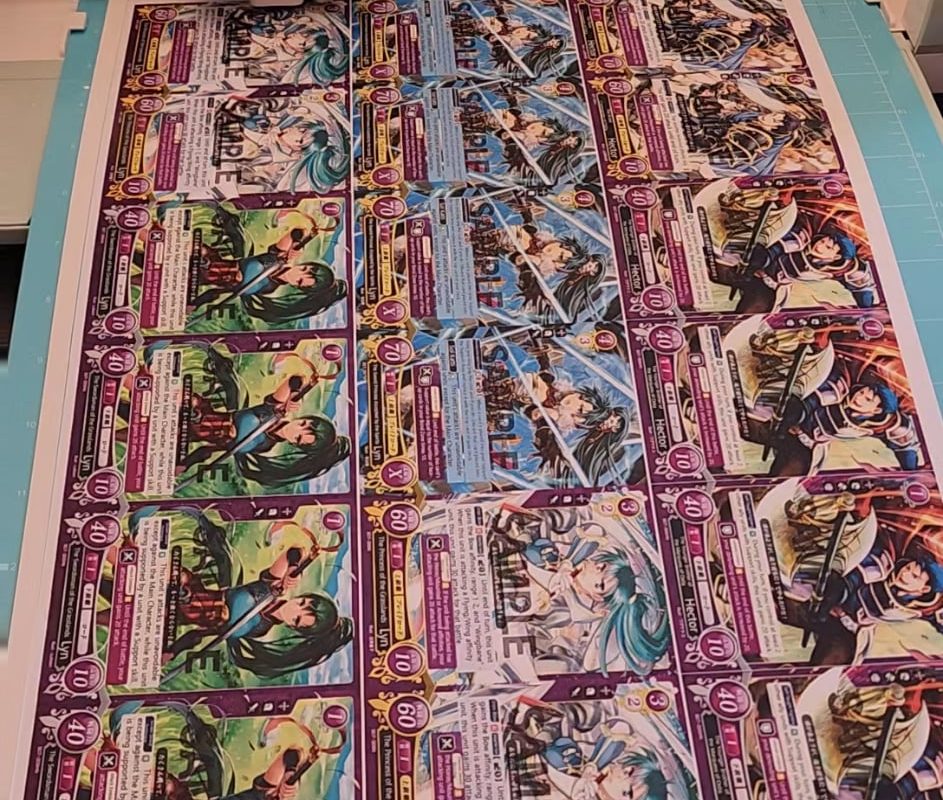
Cutting out cards on my Cricut
Craft Perfect Cards with Precision: Your Guide to Cutting Out Cards on a Cricut
Creating handmade greeting cards has never been easier—or more professional—thanks to the magic of Cricut cutting machines. Whether you’re crafting elegant wedding invitations, festive holiday cards, or personalized thank-you notes, your Cricut ensures crisp cuts, intricate designs, and flawless consistency. In this guide, we’ll walk you through the essentials of cutting out cards on your Cricut, including materials, settings, design tips, and troubleshooting tricks.
Why Use a Cricut for Card-Making?
Cricut machines take DIY card-making to the next level by:
- Saving Time: Cut multiple identical shapes or layers in minutes.
- Achieving Professional Results: Cut delicate patterns (like lace edges or florals) with precision.
- Enabling Customization: Design one-of-a-kind cards using fonts, images, and SVGs from Cricut Design Space.
- Reducing Waste: Optimize material usage with smart cutting layouts.
Materials You’ll Need
- Cricut Machine: Explore Air 2, Maker, or Joy models work beautifully.
- Cardstock: 65–110 lb weight is ideal. Heavy cardstock (80–110 lb) works best for card bases and structured designs.
- Cutting Mats: Use a StandardGrip Mat for most cardstock. For glitter or textured cardstock, try a StrongGrip Mat.
- Tools: Fine-Point Blade (for clean cuts), Scraper (to remove debris), Brayer (to secure paper).
- Optional Add-Ons: Pens for writing messages, scoring tools for fold lines, adhesive for layering.
Step-by-Step: Cutting Cards with Your Cricut
1. Design Your Card in Cricut Design Space
- Start from Scratch or Use Templates: Browse Cricut’s card templates or upload your own SVG/printable design.
- Size Matters: Set your card dimensions (e.g., standard A2 size: 5.5” x 4.25” when folded).
- Add Score Lines: Use the Score Line tool to mark fold lines for seamless creases.
2. Prepare Your Cardstock
- Iron Low-Grain Cardstock: If warped, lightly iron it (no steam) to flatten.
- Secure to the Mat: Use a brayer to press cardstock firmly onto the mat to prevent shifting.
3. Set Your Machine & Cut
- Material Settings: Select “Cardstock” in Design Space. For intricate cuts, choose “Cardstock (Intricate Cuts)” or manually adjust pressure.
- Test First: Use scrap paper to trial cuts and pressure settings.
- Load the Mat: Insert into the machine and press “Go.”
4. Assemble Your Card
- Deboss/Deboss Lite Tool: Add elegant textures to card bases.
- Layer Elements: Use adhesive foam dots for 3D effects.
- Embellish: Add glitter, stamps, or hand-written notes.
Pro Tips for Flawless Results
- Cut Slow and Steady: Use the “More Pressure” setting for thick cardstock.
- Use Tape for Tiny Pieces: Place painter’s tape over delicate cuts to keep them in place.
- Clean Your Blade: Wipe it with aluminum foil to remove adhesive residue.
- Avoid Tearing: For glitter cardstock, apply masking tape to cutting lines beforehand.
Troubleshooting Common Issues
- Incomplete Cuts? Adjust pressure upwards, replace the blade, or double-cut.
- Paper Lifting? Secure edges with tape and use a StrongGrip mat.
- Ragged Edges? Switch to a new blade or reduce cutting speed.
10 Creative Card Ideas to Try
- Pop-Up Cards: Use Score Tools to create 3D scenes.
- Shaker Cards: Fill a window with sequins for interactive fun.
- Watercolor Backgrounds: Cut out white overlays to contrast with painted bases.
- Layered Florals: Stack SVG flower cutouts for depth.
- Metallic Accents: Cut foil cardstock for a luxe touch.
FAQs
Q: Can I cut multiple card layers at once?
A: Yes! Layer different colored cardstocks on the mat and cut simultaneously.
Q: How do I align folded card bases perfectly?
A: Use the scoring tool first, or create a custom jig in Design Space.
Q: Can my Cricut Joy cut cardstock?
A: Absolutely—just avoid cardstock heavier than 80 lb on the Joy.
Final Thoughts
Your Cricut empowers you to turn cardstock into works of art—whether you’re crafting 10 cards or 100. With the right settings and a dash of creativity, you’ll save time, minimize frustration, and create cards that look store-bought (but feel infinitely more heartfelt).
Now, power up that Cricut and let the magic begin! Share your card creations with us using #CricutCardMagic. 🎨✨
Need SVG files for your next project? Browse our free card template library [here] or explore Cricut Access’s premium designs!
SEO Keywords: Cut cards Cricut, DIY greeting cards, Cricut cardstock settings, how to make cards with Cricut, Cricut card cutting tips, personalized Cricut cards.