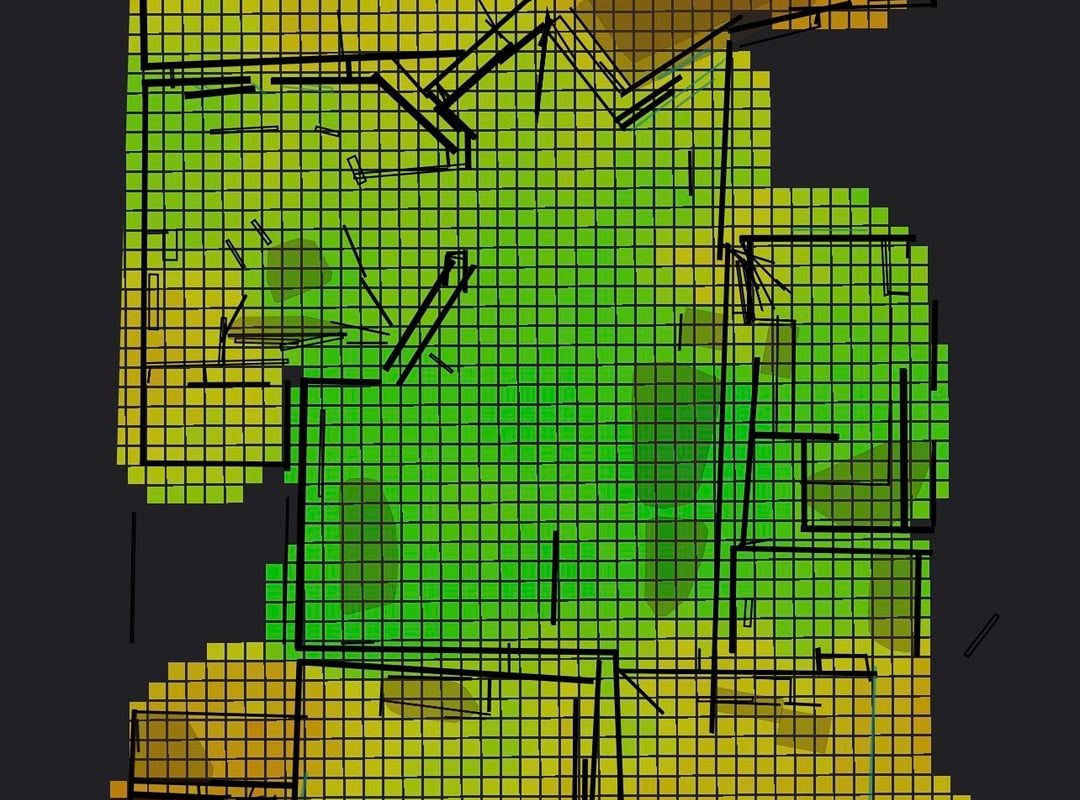
A heat map of 2.4Ghz and 5Ghz wifi connection (of my home)
Title: How to Create a Wi-Fi Heat Map for 2.4GHz & 5GHz Bands to Optimize Your Home Network
Meta Description: Boost your home Wi-Fi performance! Learn how to create a heat map for 2.4GHz and 5GHz signals to eliminate dead zones and maximize speed.
Why Map Your Home Wi-Fi Signal?
Slow Wi-Fi speeds, dead zones, and buffering videos are often caused by poor signal distribution. A Wi-Fi heat map visualizes your network’s coverage, revealing weak spots in both the 2.4GHz (longer range, slower speed) and 5GHz (faster speed, shorter range) bands. By analyzing these heat maps, you can reposition your router, upgrade hardware, or fine-tune settings for seamless connectivity.
Tools You’ll Need to Create a Wi-Fi Heat Map
-
Heat Mapping Software/Apps:
- NetSpot (Windows/macOS): Free or paid plans with professional heat mapping.
- Ekahau HeatMapper (Windows): User-friendly and free for basic use.
- Wi-Fi Analyzer Apps (Android/iOS): Apps like Ubiquiti WiFiman or Netgear Wi-Fi Analytics provide simplified signal maps.
- Router Built-In Tools: Some mesh systems (e.g., Google Nest, Eero) include coverage tests.
-
Your Home Floor Plan: Sketch or upload a blueprint to most tools for accurate mapping.
Step-by-Step Guide to Mapping Your Wi-Fi Signal
1. Choose Your Tool & Prepare
- Download your preferred software or app.
- Upload or sketch your home’s floor plan (ensure scale accuracy).
2. Walk Through Your Home
- Enable the tool’s “Survey Mode” and physically walk through every room.
- Pause in key areas (e.g., bedrooms, kitchens, basements) to record signal strength.
- Pro Tip: Test both bands separately if your tool allows it.
3. Generate the Heat Map
- The software processes data to create color-coded maps:
- Red/Orange: Strong signal (ideal).
- Yellow/Green: Moderate signal (acceptable).
- Blue/Purple: Weak signal or dead zones (needs fixing).
4. Analyze 2.4GHz vs. 5GHz Performance
- 2.4GHz Band:
- Expect broader coverage but slower speeds due to interference (microwaves, Bluetooth).
- Weak spots often appear near thick walls or distant rooms.
- 5GHz Band:
- Faster speeds but shorter range; weak signals drop sharply through obstacles.
- Dead zones are common in basements or far corners.
How to Fix Wi-Fi Dead Zones & Optimize Coverage
Based on your heat map, take action:
-
Reposition Your Router:
- Place it centrally, elevated, and away from obstructions (metal, concrete, water pipes).
- Avoid corners or cabinets.
-
Adjust Band Usage:
- Use 2.4GHz for smart devices or low-bandwidth tasks in remote areas.
- Reserve 5GHz for streaming/gaming near the router.
-
Upgrade Your Hardware:
- Mesh Systems: Ideal for large homes (e.g., Google Nest, TP-Link Deco).
- Wi-Fi Extenders: Budget fix for small dead zones (use 2.4GHz for better reach).
-
Reduce Interference:
- Change channels (use tools like Wi-Fi Analyzer to find the least crowded).
- Move devices like baby monitors or cordless phones away from routers.
FAQ: Wi-Fi Heat Mapping Explained
Q: Can I make a heat map without software?
A: Yes. Walk around with a phone using apps like Wi-Fi Analyzer to manually note signal strength in each room.
Q: Why is my 5GHz signal so weak upstairs?
A: 5GHz struggles with floors/walls. Add a mesh satellite node or extender upstairs.
Q: How often should I remap my Wi-Fi?
A: After rearranging furniture, adding devices, or upgrading hardware.
Conclusion
A Wi-Fi heat map for both 2.4GHz and 5GHz bands is the ultimate diagnostic tool to optimize your home network. By identifying dead zones and interference sources, you can strategically place routers, assign devices to the right band, and enjoy faster, more reliable internet. Don’t guess—map it!
Ready to test? Start with a free tool like NetSpot today and conquer those dead zones!
SEO Keywords: Wi-Fi heat map, 2.4GHz vs 5GHz, optimize home Wi-Fi, eliminate dead zones, Wi-Fi signal strength, mesh network, router placement, Wi-Fi analyzer, NetSpot heat map.