Data recovery from a dead USB Flash drive
Title: Resurrect Your Data: The Ultimate Guide to Recovering Files from a Dead USB Flash Drive
Meta Description: Is your USB flash drive dead or unrecognized? Don’t panic! Learn proven methods to recover your precious data, from DIY fixes to professional recovery options.
Introduction
USB flash drives are compact, portable, and notoriously fragile. Whether it’s vital work documents, family photos, or critical backups, a “dead” USB drive can feel like a digital disaster. But before you mourn your lost data, know this: recovery is often possible, even if your drive isn’t detected by your computer. In this guide, we’ll walk you through diagnosing the problem, DIY recovery techniques, and when to call in the pros.
Signs Your USB Drive Might Be Dead
-
No LED Light or Physical Response
If the drive doesn’t light up or make sounds when plugged in, hardware failure is likely. -
“USB Device Not Recognized” Error
Your PC detects something, but the drive remains inaccessible. -
Drive Shows Up but Files Are Missing/Corrupt
Logical errors or corrupted file systems could be to blame. -
Strange Noises (Clicking, Grinding)
Indicates potential mechanical damage (rare in USBs but possible).
Common Causes of USB Drive Failure
- Physical Damage: Bent connectors, water exposure, or circuit board issues.
- Logical Corruption: File system errors, malware, or improper ejection.
- Firmware Failure: Outdated or corrupted firmware blocks communication with the PC.
- Worn-Out Flash Memory: Excessive read/write cycles degrade storage cells over time.
- Manufacturer Defects: Cheap drives often fail prematurely.
DIY Fixes to Recover Data from a Dead USB
Step 1: Basic Troubleshooting
- Check Connections: Try different USB ports, cables, or computers.
- Test on Another OS: Use macOS, Linux, or a friend’s PC to rule out OS-specific issues.
Step 2: Check File Explorer & Disk Management (Windows)
- Open Disk Management (
Win + X> Disk Management). - Look for your USB drive. If it appears as “Unallocated” or “RAW,” the file system is corrupted.
- DO NOT initialize or format—this erases data!
Step 3: Use Command-Line Tools (Advanced)
-
Run CHKDSK to repair logical errors:
cmd
chkdsk X: /f /r (Replace X with your drive letter) -
Warning: CHKDSK may worsen data loss if hardware failure is suspected.
Step 4: Data Recovery Software
Specialized tools can bypass logical errors and extract files:
- Recuva (Free) – Simple undelete tool for accidentally removed files.
- TestDisk (Free) – Repairs partitions and recovers lost volumes.
- DMDE (Paid/Free Trial) – Advanced recovery for RAW or corrupted drives.
Tip: Install tools on a different drive to avoid overwriting USB data.
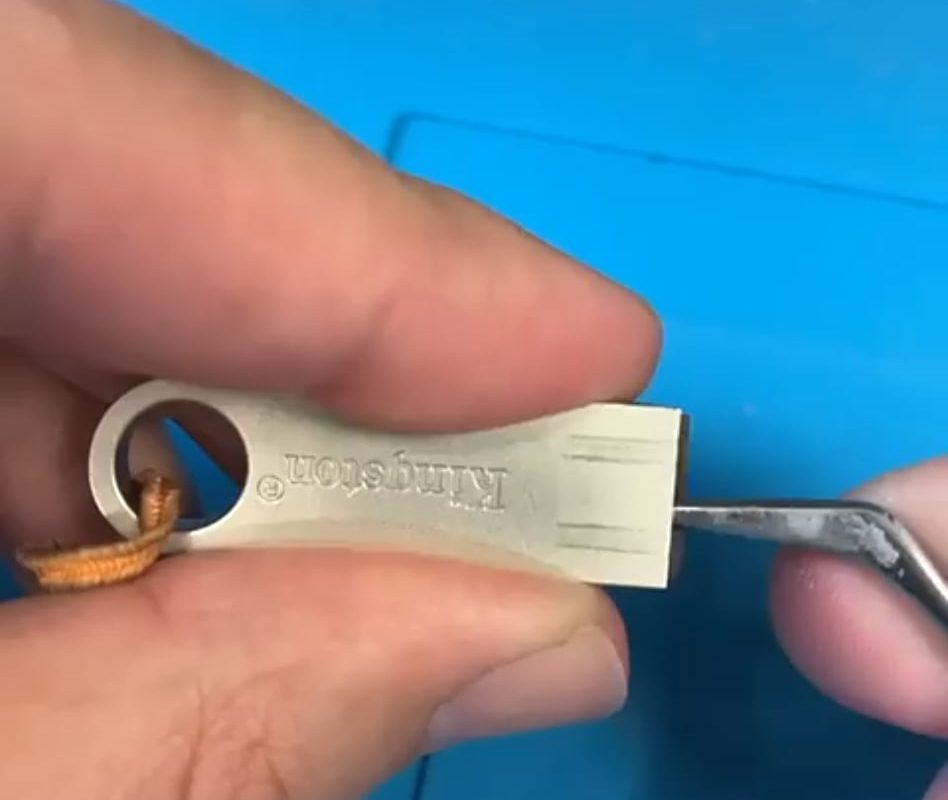
Step 5: Remove & Re-Solder Connections (For Tech-Savvy Users)
If the USB connector is damaged:
- Open the drive casing carefully.
- Re-solder loose connections or attach the memory chip to a donor drive.
- Not recommended without electronics experience!
When to Hire a Professional Data Recovery Service
If DIY methods fail (or you suspect hardware damage), professional labs can:
- Repair PCB components.
- Replace damaged controllers.
- Extract data directly from NAND chips in a cleanroom.
Cost: $200–$1,000+, depending on complexity.
Top Labs: DriveSavers, Ontrack, Gillware.
⚠️ Avoid Scams:
- Get a free evaluation first.
- Choose labs with ISO-certified cleanrooms.
Preventing Future USB Drive Disasters
- Backup Religiously: Follow the 3-2-1 Rule—three copies of data, on two devices, one offsite.
- Eject Safely: Always use “Safely Remove Hardware” to prevent corruption.
- Buy Quality: Premium brands (SanDisk, Samsung, Kingston) last longer.
- Avoid Extreme Conditions: Heat, moisture, and static electricity kill flash memory.
FAQ
Q: Can a dead USB drive be fixed permanently?
A: Rarely. Focus on data recovery first—once files are safe, replace the drive.
Q: How long do USB drives last?
A: 3–5 years with moderate use. Higher-quality drives endure 10+ years.
Q: Are free recovery tools safe?
A: Reputable tools (like Recuva) are safe, but avoid obscure software—they may contain malware.
Final Thoughts
A dead USB flash drive doesn’t always mean dead data. With patience and the right approach, you can resurrect lost files and avoid heartache. Start with simple fixes, escalate to software tools, and consult professionals if all else fails. And remember: backup, backup, backup!
Need Immediate Help? Comment below with your USB symptoms, and we’ll guide you!
Optimized for Keywords:
- Dead USB recovery
- USB flash drive not detected
- Corrupted USB data recovery
- Recover files from dead USB
- USB repair and recovery